
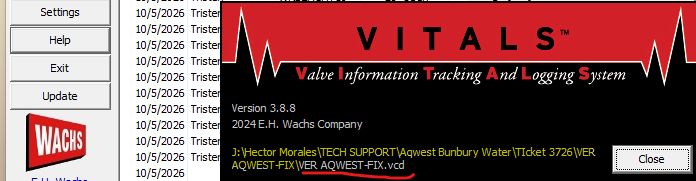
First you need to know where your current database is located in case you need to use that again. You can do that by clicking Help and then About Vitals Desktop. This will show the directory on your PC and the name of the database you currently have open. Note this location in case you need it later. The example below is for the database I currently have open.
Create new blank database:
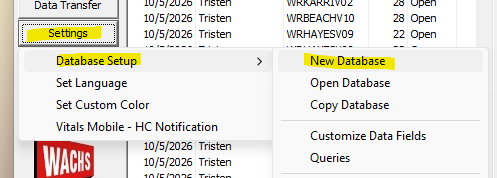
To create a new blank database, simply click Settings then Database Setup, and then New Database. If you get a pop up message just click OK.
On the next window just select the location you want to save it, and also enter a new name for the database, then click Save.

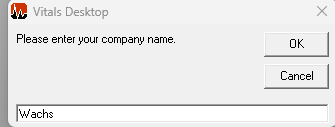
Enter a Company Name when prompted and click OK.
After this Vitals Desktop will remember this new database and will always open it upon launching. When collecting activities with your controller simply do a DataTransfer/FlashTransfer to this database to start saving it here.
NOTE:
If you ever want to open the older database, just click Settings, Database setup and then Open database and point to the old location.
The data during data transfer will always get downloaded to which ever database you currently have open in Vitals Desktop.