
AFFECTED CONTROLLERS:
All TC-110 controllers bought between December 2025 to May 2026. Controllers bought in June 2026 and after should not have this issue anymore.
SYMPTOMS:
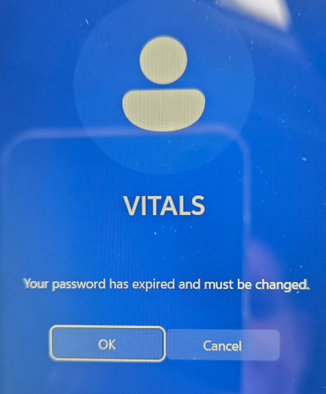
User gets locked out of the controller with the Password Expired message asking to change the password even though the tablet did not had a password to begin with.
ROOT CAUSE:
Windows 11 has a password expiration age of 42 days when a local offline account is used, which is the case for the TC-110 controllers, even if the device was setup with no password.
SOLUTION:
Enter a new password for now:
- Click OK on the first window above to reset password.
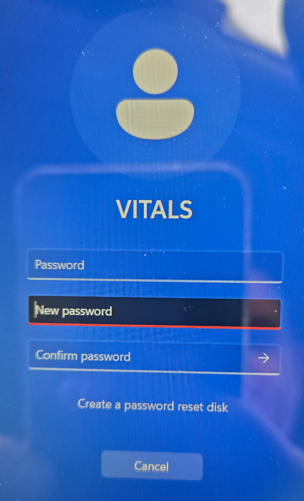
- Leave the Password field blank (since there was no password to begin with)
- For New password and Confirm password type a new temporary password like 1234 (can be removed later).
- Click OK to continue to log in to the TC-110 controller.
Change the password age setting to 0 days.
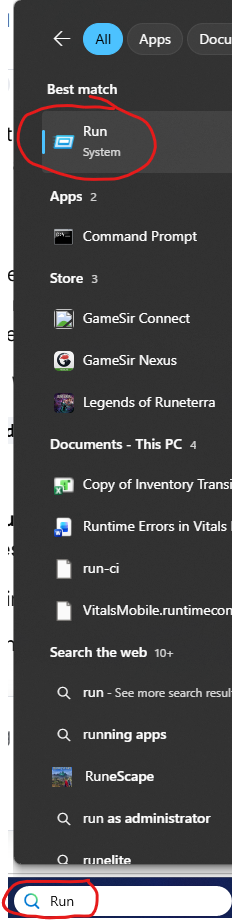
- In the windows search bar type Run and select the Run app from the results.
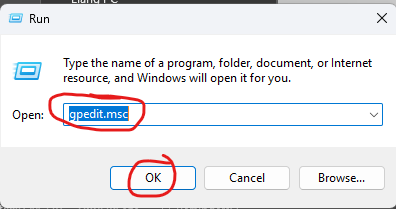
- Type gpedit.msc and click OK in the Dialog box.
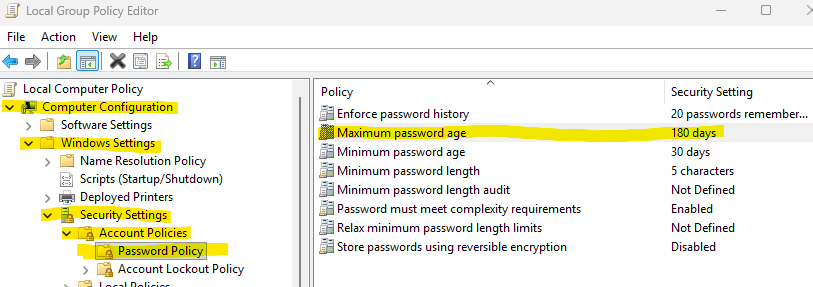
- In the left panel navigate to Computer Configuration-->Windows Settings-->Security Settings-->Account Policies-->Password Policy
- Under Password Policy, double click (tap) the Maximum password age setting highlighted above.
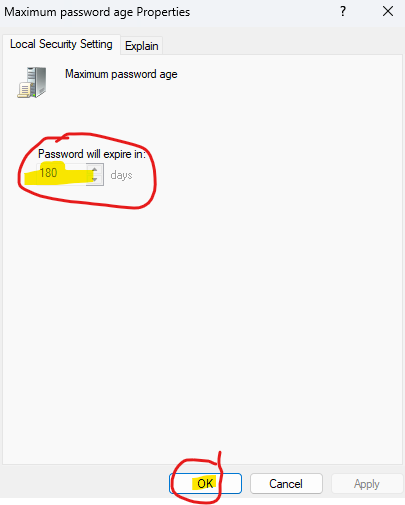
- Enter 0 in the Password will expire in: field and then click Apply and then OK. Windows treats 0 as never. Your password (or no password) will never expire with this setting. In example below 180 needs to be changed to 0.
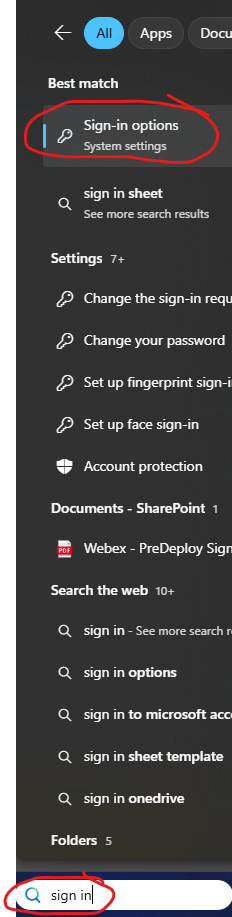
- If you want to remove your password from the TC-110, type in Sign-In Options in the search bar and click the app circled below.
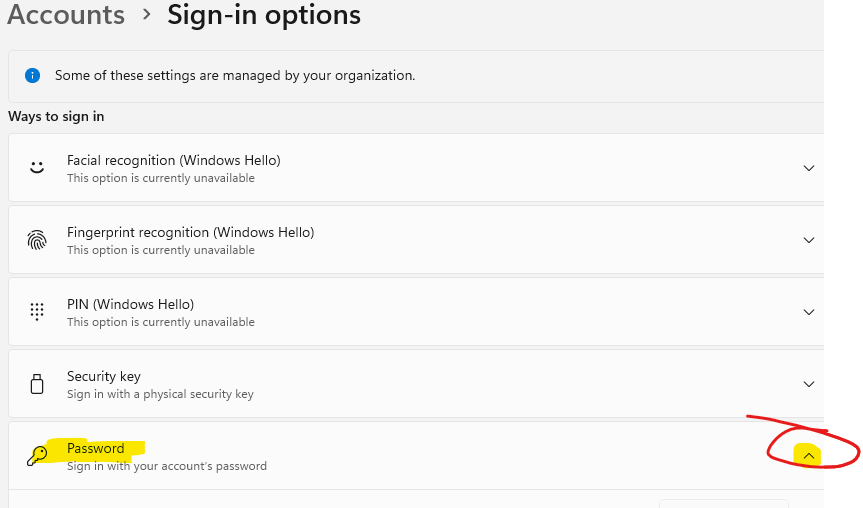
- Then click the Password option and select Change to change your password. You will have to type your current password (1234 from above or whatever password you used above).
- For new password just leave it blank and click ok.
After completing the above steps your password (or no password) should not expire anymore.