
TC-110 FACTORY RESET
1/12/2026
If you want to set the TC-110 controller to factory defaults, follow the instructions below. After a factory reset, the user will have to go through the Windows 11 setup to create a new offline account. See TC-110 Windows Setup section for instructions.
Option 1:
If you can access the current operating system, navigate to Start > Settings > System > Recovery > Reset this PC (Get started) then follow the instructions in each step below.
- Select Remove everything àChange Settings à Slide to YES (Clean data) àConfirm
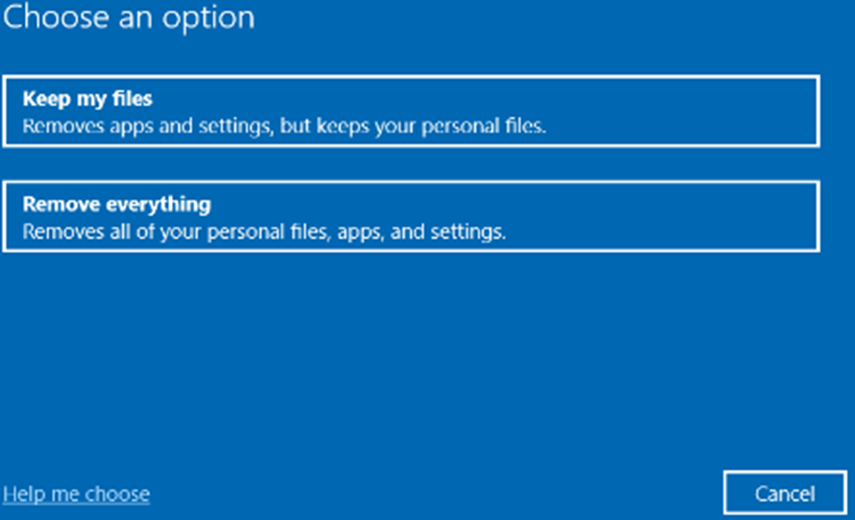
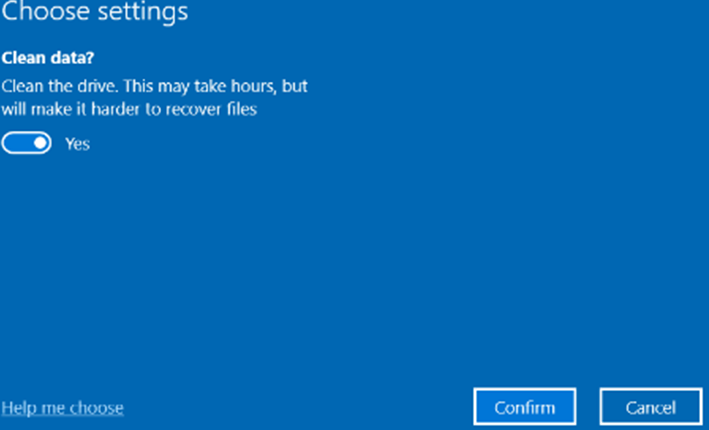
- Select NextàReset.
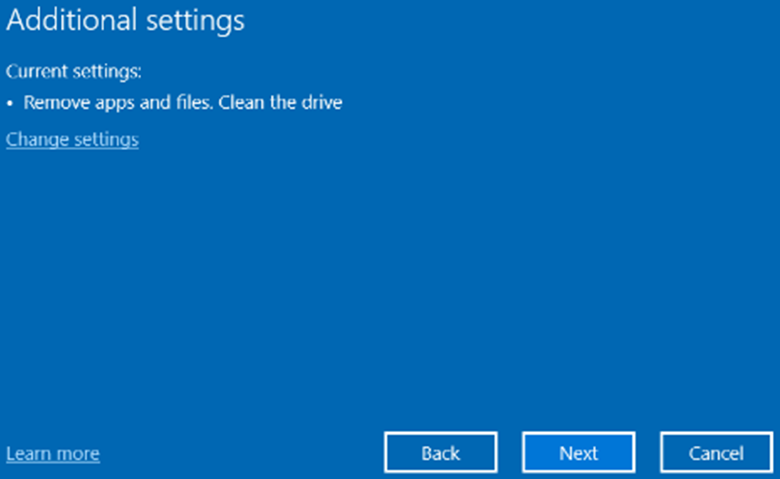
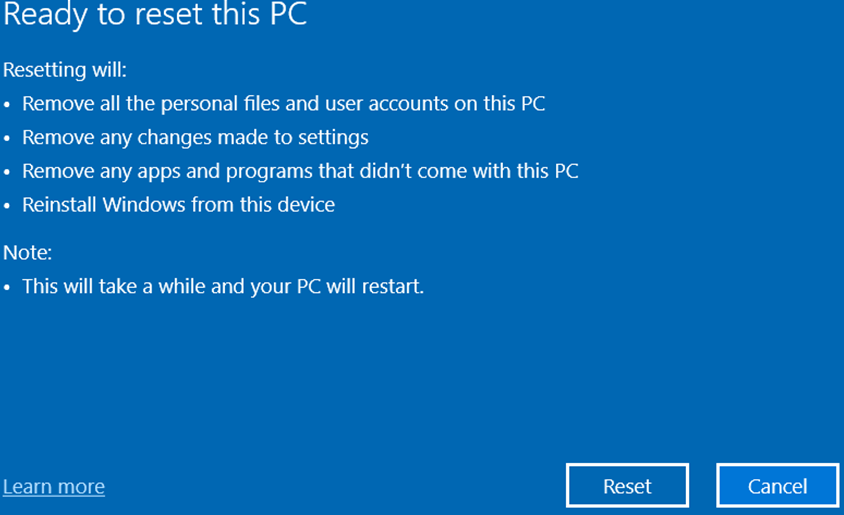
- Setup a new account by following TC-110 Windows Setup instructions.
Option 2:
If you are not able to access the current operating system (stuck during boot process or forgot password), tap or press the Shift button (on screen or on an attached USB keyboard) while performing a Restart. If done correctly, you should see a menu with Troubleshoot (Reset your PC) option.
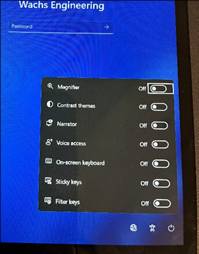
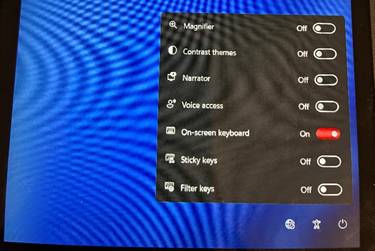
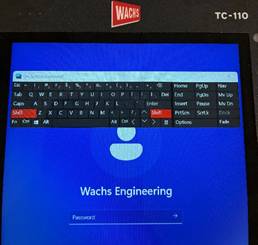

- Follow the same onscreen instructions as in Option 3 below (some windows might be in different order).
Option 3:
If options above did not work, try the following steps:
- Press and hold the hardware Power button for 10 seconds
- Release power button while the red LED is flashing rapidly
- Briefly press the Power button again, wait 3-4 seconds
- Immediately repeat this process two more times.
This will force the system to Restart before completing boot three times in a row will show “Diagnosing your PC” then the Automatic Repair menu as previously described.
Follow steps below after getting to the Automatic Repair window (some steps might be in different order depending on which option above you followed):
- Click Advanced OptionsàTroubleshootàReset this PC.
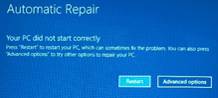
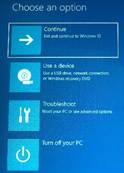
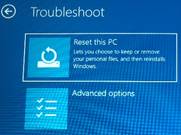
- Click Local InstallàFully clean the driveàReset
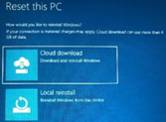
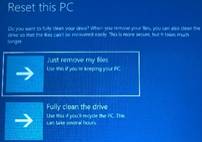
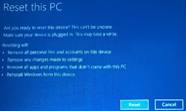
- Wait for TC-110 to restore Factory Defaults.
- Setup a new account by following TC-110 Windows Setup instructions below.
TC-110 Windows Setup (Win 11)
Follow this guide to set up a local offline account on the TC-110 (Windows 11). However, depending on the release the steps may be slightly different.
To setup Windows 11, follow these steps:
- Select Language.
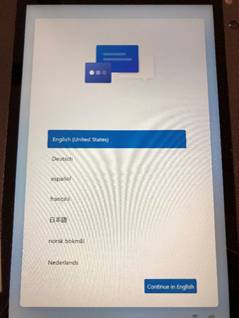
- Select the Continue in English button.
- Select your Region option.
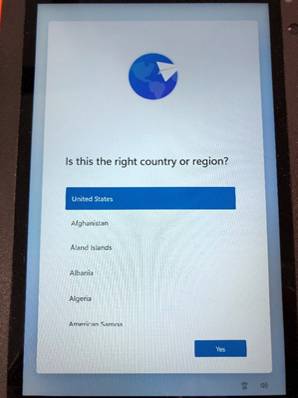
- Click the Yes button.
- Select your keyboard layout option.
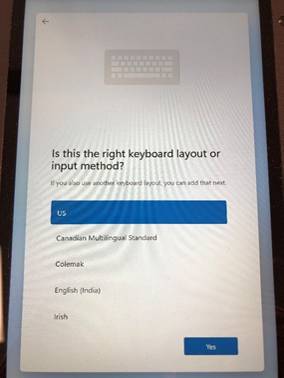
- Click the Yes button.
- Add second keyboard layout.
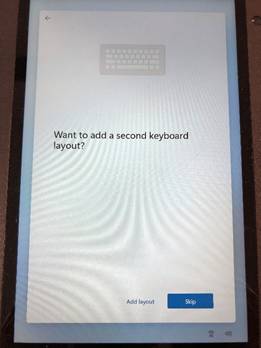
- Click the Skip button (unless you need to add a second keyboard layout).
- Connect you to a network.
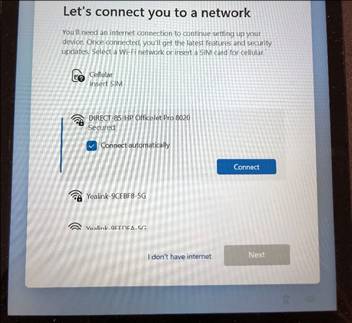
- Click “I don’t have internet” on the bottom left corner of the screen.
- Windows 11 License Agreement
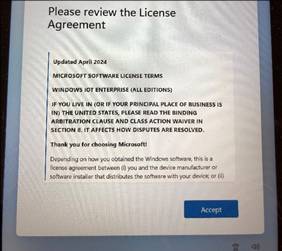
- Click the Accept button.
- PC Name.
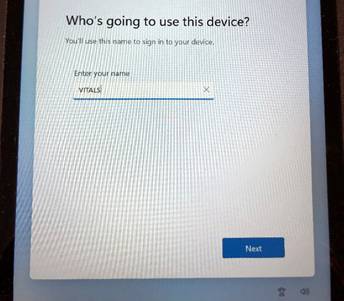
- Enter a name for device (VITALS if unsure). Click Next.
- Create a password.
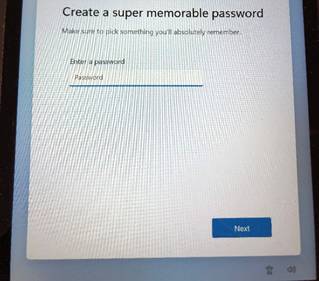
- Leave blank (no password) and click Next.
- Privacy settings.
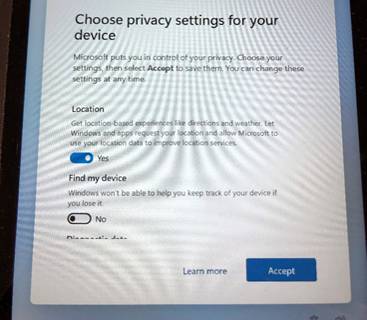
- Select YES for Location (required for internal GPS). Everything else select NO. Click Accept.
- Wait for the device to finish setup.
NOTE: Connect your device to the internet (Wi-Fi) to fully activate Windows. Vitals Mobile-TC software is factory installed on the TC-110.
Please visit: https://www.turnvalves.com/VITALS-Manual/ for more information.