
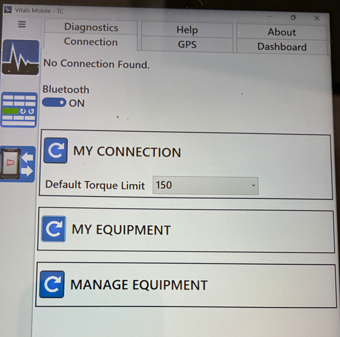
ISSUE: Vitals Mobile (TC-110) does not detect the Control Cable after connecting to USB port. Issue seems to be with drivers in Windows 11.
Cable does not show up as shown below:
REMEDY:
- Connect TC-110 controller to the internet via Wi-Fi.
- Connect Control Cable to USB port on the bottom of the controller.
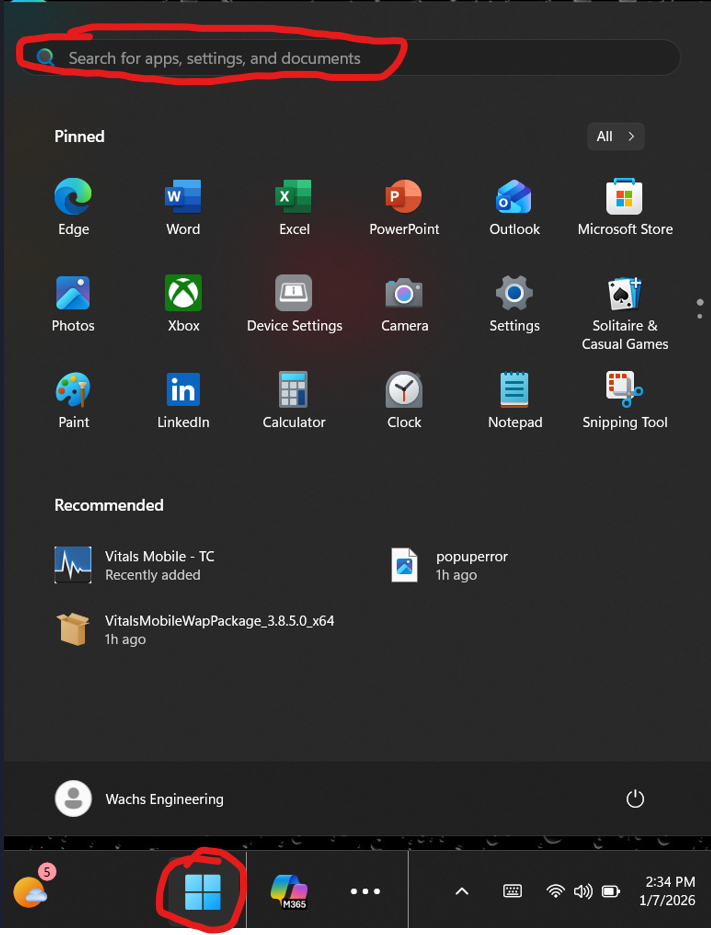
- Click the Windows log on the task bar and then select the Search Bar at the top as shown below
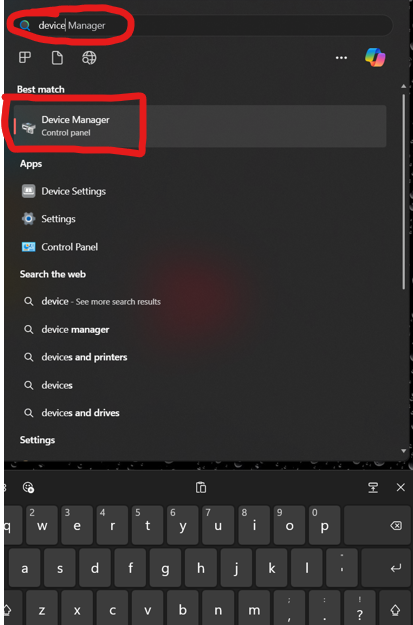
- Type Device Manager in search bar and then select the Device Manager from the list to launch it.
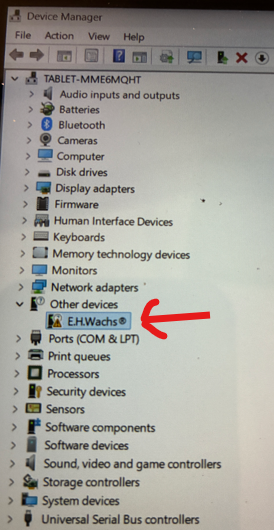
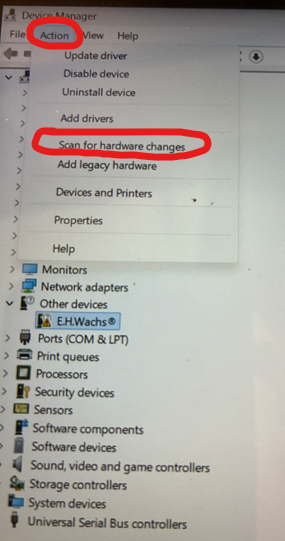
- In Device Manger, expand the Other Devices item and then select the E.H.Wachs item that has the warning symbol, this should highlight it.
- Select Action on the top Menu and then select Scan for hardware changes
- After this it could take up to 15 minutes for the driver to get update if connected to the internet.
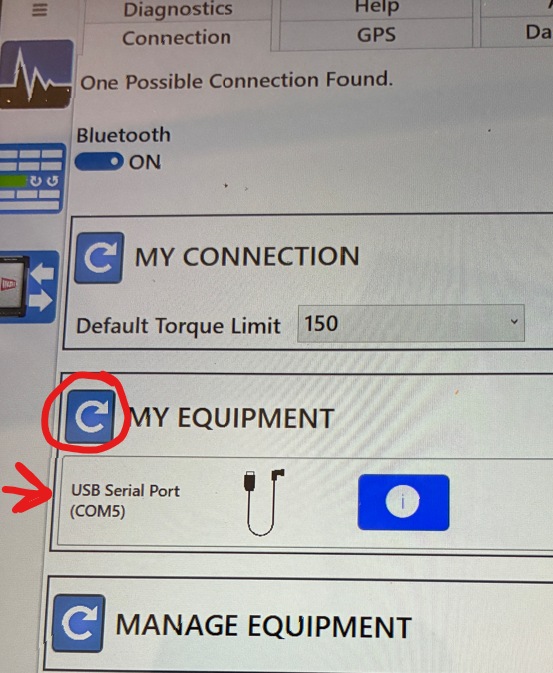
- Once it gets updated, the Other Devices item will not show up anymore and you will have a new item under Ports (COM &LPT) shown as USB Serial Port (COMX). The actual COM number might vary. See below.

- Now go to Vital Mobile Connection Settings and refresh the My Equipment section by clicking the refresh button and it should now show the cable. After this you can click on the cable to move it up to the My Connection section to start using it.
- Going forward connection to internet is no longer needed.
- If still having issues just try unplugging the cable and pugging it back in to see if it installs the drivers.